Docker for Beginners: Containers Made Simple
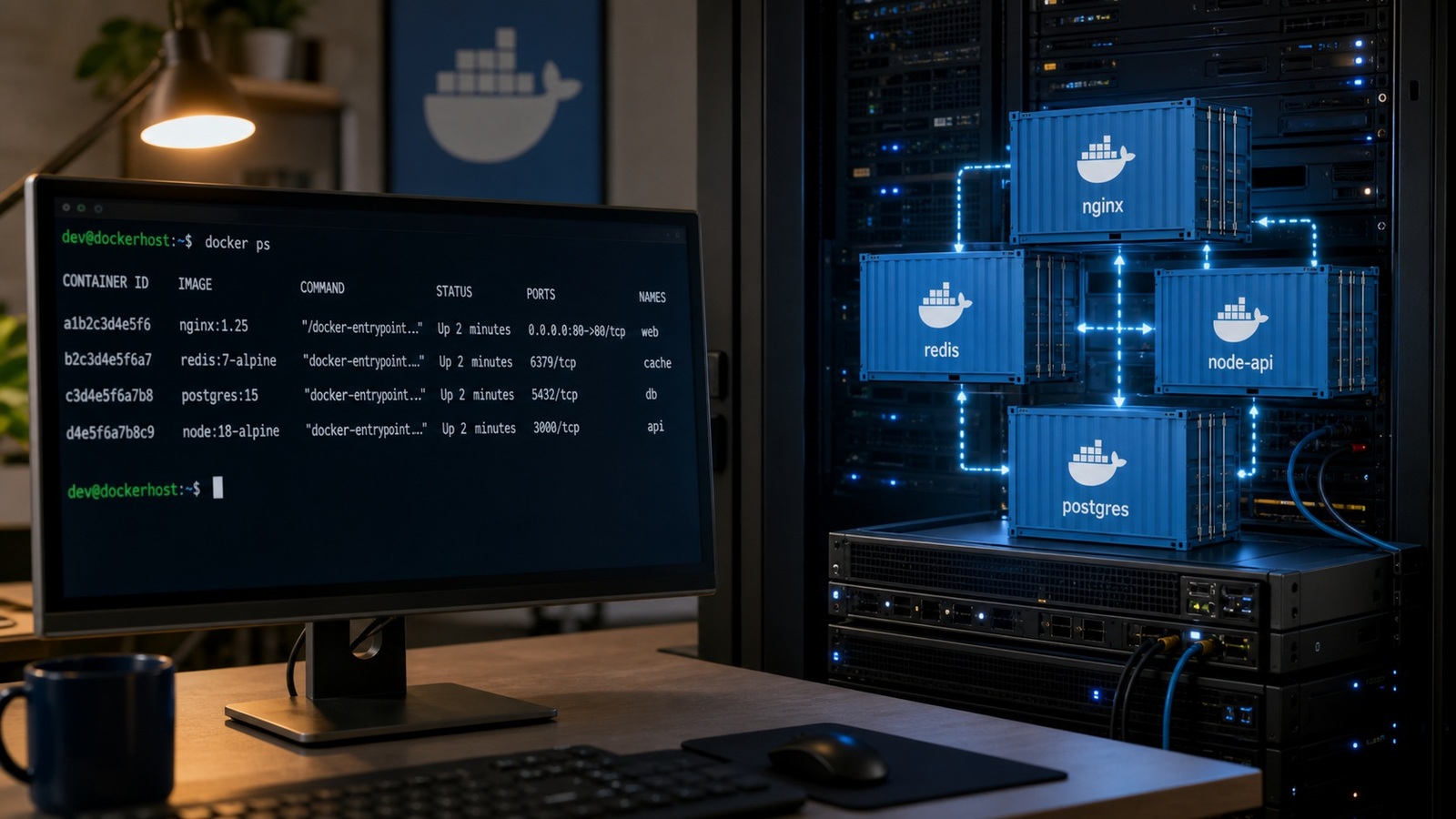
This guide to Docker for beginners exists because containers are the piece of modern infrastructure that finally makes “it works on my machine” stop being an excuse. If you can run a program in a terminal but have never packaged one to share, you’re exactly who I have in mind. I’ll explain what a container really is, how images differ from containers, the handful of commands you actually need, and the Dockerfile that ties it all together — no prior ops experience assumed.
The 'works on my machine' problem
Every developer has shipped code that ran perfectly on their laptop and then broke the moment someone else tried it. The usual culprit is environment drift: a different language version, a missing system library, an unset variable. The reason Docker for beginners is worth learning early is that it attacks this problem head-on — instead of hoping two machines match, you ship the environment along with the code.
Before containers, teams wrote long setup documents and still lost hours to “works on my machine.” A container replaces that document with something executable. When the environment is defined in a file and built into an image, everyone runs the exact same thing, down to the patch version.
What a container is (vs a VM)
A container is an isolated process that carries its own filesystem, libraries, and dependencies while sharing the host machine’s operating system kernel. That shared kernel is the key difference from a virtual machine. A VM boots an entire guest operating system on top of a hypervisor; a container skips all of that and starts in a fraction of the time.
| Aspect | Container | Virtual machine |
|---|---|---|
| Startup | A second or less | Tens of seconds to minutes |
| Size | Megabytes | Gigabytes |
| Isolation | Process level, shared kernel | Full OS, hardware level |
| Overhead | Minimal | Heavier |
Neither is strictly better. Containers are lighter and faster, which is why they dominate application deployment, while VMs give stronger isolation. For the full comparison, see containers vs virtual machines.
Images vs containers
This is the distinction that trips up almost everyone at first. An image is the blueprint — a read-only, versioned package of your app and its environment. A container is a running instance of that image. One image can start many containers, the same way one class can create many objects.
- Image — built once, stored, shared, and versioned by a tag; you never edit it, you rebuild it.
- Container — a live process started from an image; cheap to create, stop, and throw away.
Internalize that images are immutable and containers are disposable, and most Docker commands suddenly make sense.
The handful of commands you need
You can be productive with a small set of commands. Everything below is a docker <command>, and you rarely need more than these on day one.
docker pull <image>— download an image from a registry.docker run <image>— start a container from an image.docker ps— list running containers; add-ato see stopped ones too.docker build -t <name> .— build an image from a Dockerfile in the current folder.docker stop <id>anddocker rm <id>— stop and then remove a container.
A classic first run is docker run -p 8080:80 nginx, which starts a web server and maps port 80 inside the container to 8080 on your machine. Open the browser and it’s there — with nothing installed on the host.
A Dockerfile, line by line
A Dockerfile is a plain-text recipe for building an image. Each line is an instruction, and Docker runs them top to bottom. Here is the shape of a typical one for a small app:
FROM node:20-slim— start from an official base image instead of building from nothing.WORKDIR /app— set the working directory inside the image.COPY package.json .— copy the dependency manifest first so Docker can cache the install.RUN npm install— install dependencies during the build.COPY . .— copy the rest of your source in.CMD ["node", "server.js"]— the command that runs when a container starts.
The ordering matters for speed. Because Docker caches each layer, copying package.json before your source means editing a line of code doesn’t force a full reinstall.
Where images live: registries
Once you’ve built an image, you need somewhere to store and share it. That’s a registry — think of it as a package repository for container images. Docker Hub is the default public one, and every major cloud offers a private registry of its own.
The workflow is short: docker build locally, docker push to a registry, then docker pull anywhere you want to run it. Your delivery automation usually does the push, and each deploy target pulls the same image by its tag. That handoff is exactly where containers meet your CI/CD pipeline.
Common beginner mistakes
A few mistakes show up again and again. None are serious, and knowing them upfront saves an afternoon.
- Storing data inside the container — containers are disposable, so anything not written to a mounted volume vanishes when they’re removed.
- Relying on the
latesttag — it moves under you; pin a specific version so builds stay reproducible. - Bloated images — start from a
slimoralpinebase and copy only what you need. - Running as root — add a non-root user; it’s a small change that closes a real security gap.
When you outgrow starting containers by hand, an orchestrator takes over — see Kubernetes basics for where that road leads.
Frequently asked questions
Is Docker free to use?
Docker Engine, the core runtime, is open source and free. Docker Desktop is free for personal use, education, and small businesses, but larger companies need a paid subscription. Many teams simply run the engine directly on Linux at no cost.
Do I need to learn Docker before Kubernetes?
In practice, yes. Kubernetes orchestrates containers, so it assumes you already understand images and containers. Get comfortable building and running a few containers first, then move on to Kubernetes basics.
What is the difference between an image and a container?
An image is the static, versioned package; a container is a running instance of it. You build an image once and can start, stop, and delete many containers from it without ever changing the image.
Are containers secure enough for production?
Containers run in production everywhere, but they aren’t as strong a boundary as a full VM because they share the host kernel. Follow the basics — run as a non-root user, keep base images patched, and pin versions — and they’re solid for most workloads.
Docker rewards a small amount of upfront learning with a skill you’ll use on nearly every project: package once, run anywhere, and stop chasing phantom environment bugs. Build one image, push it, and run it somewhere else to feel it click. For how that image becomes an automated release, start with our cornerstone guide to CI/CD.
Last updated: July 6, 2026


Comments
Post a Comment